- How to create new project
- Builder Overview
- Add Section
- Delete Section
- Edit Section
- Edit Text Content
- Edit Section Content Style
- Change Background Image
- Add Clickable link
- Popup Image/Video
- Modal/Popup Form/Alert
- Add Animation
- Add Preloader
- Add Favicon
- Section Gap
- Border Radius
- Responsive Style Change
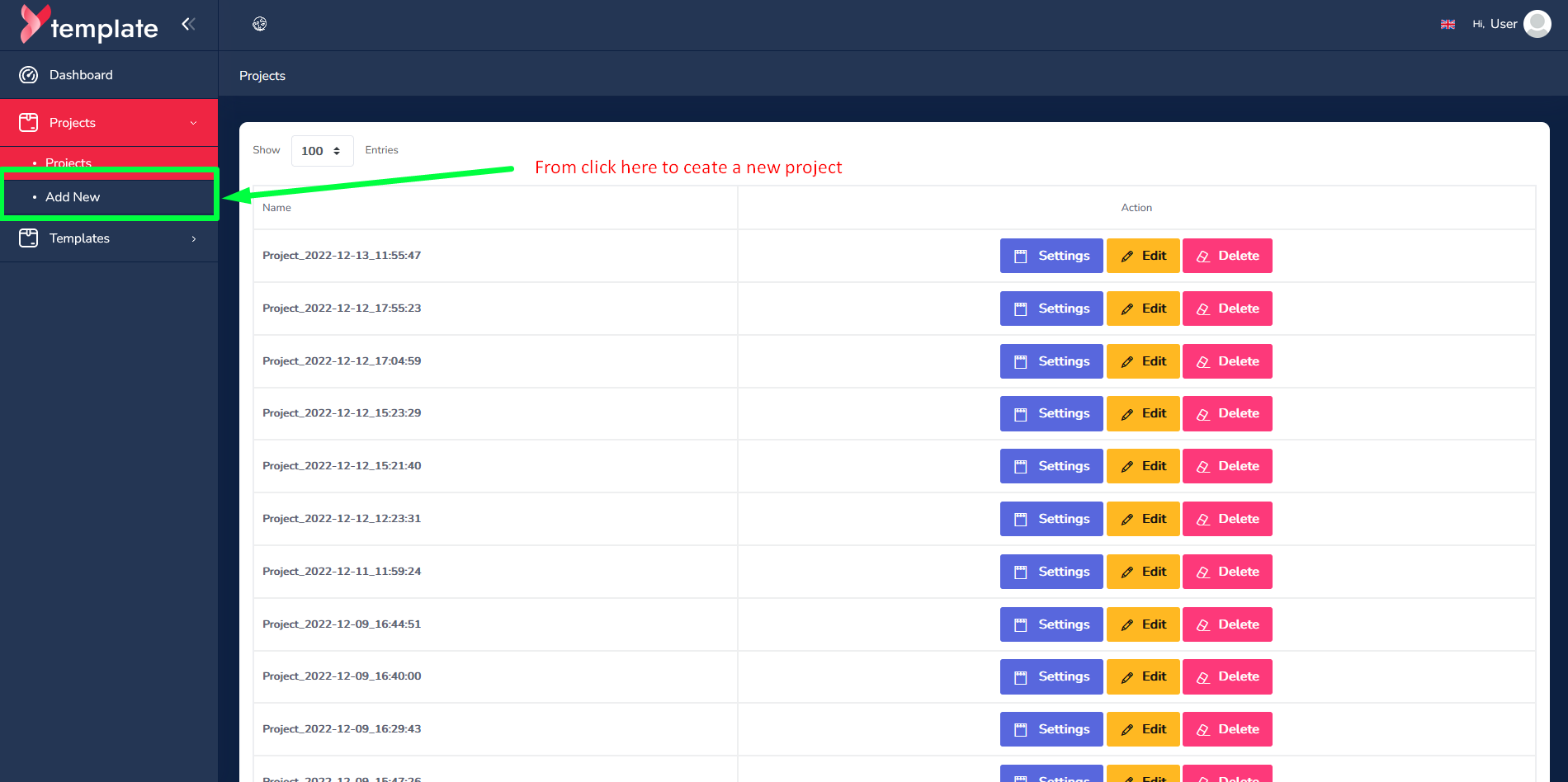
Create New Project
For creating a new project, first, go to the left side menu bar then Projects > Add New
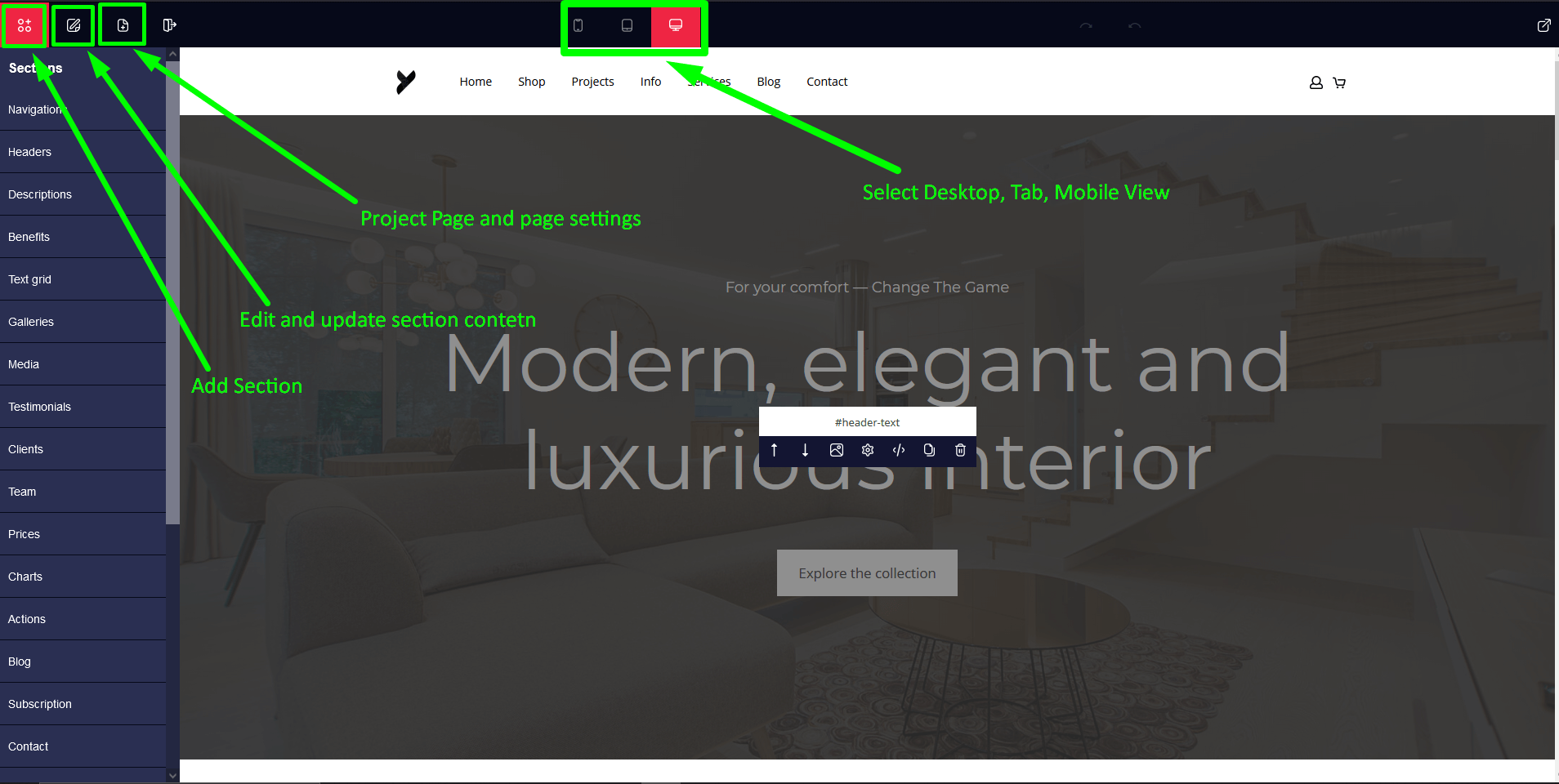
Page Builder Overview
Add any Section
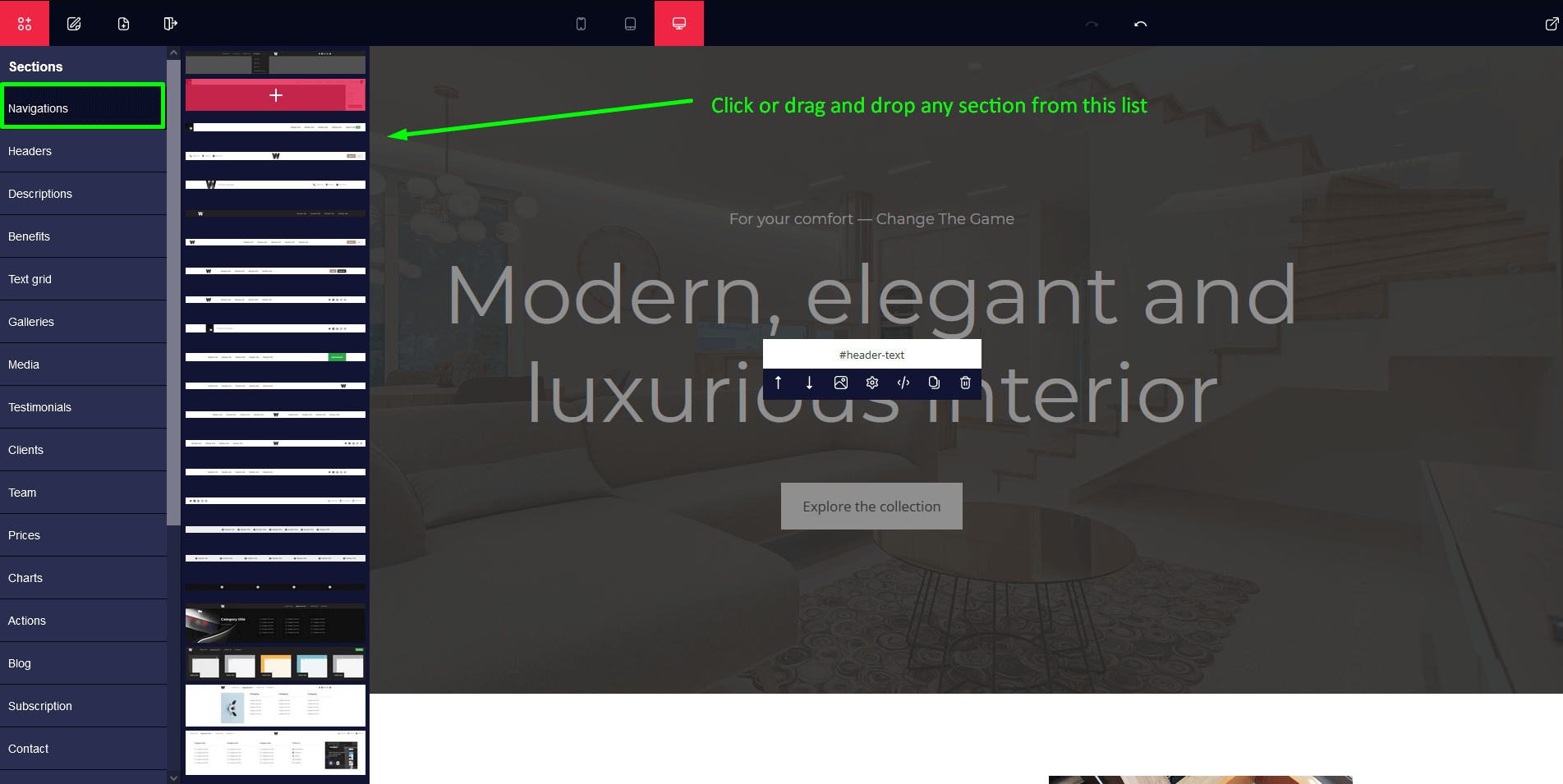
To add a section, click the section icon and then click the section category and then click or drag the section style which you choose. The steps age given in below picture.
Delete any Section
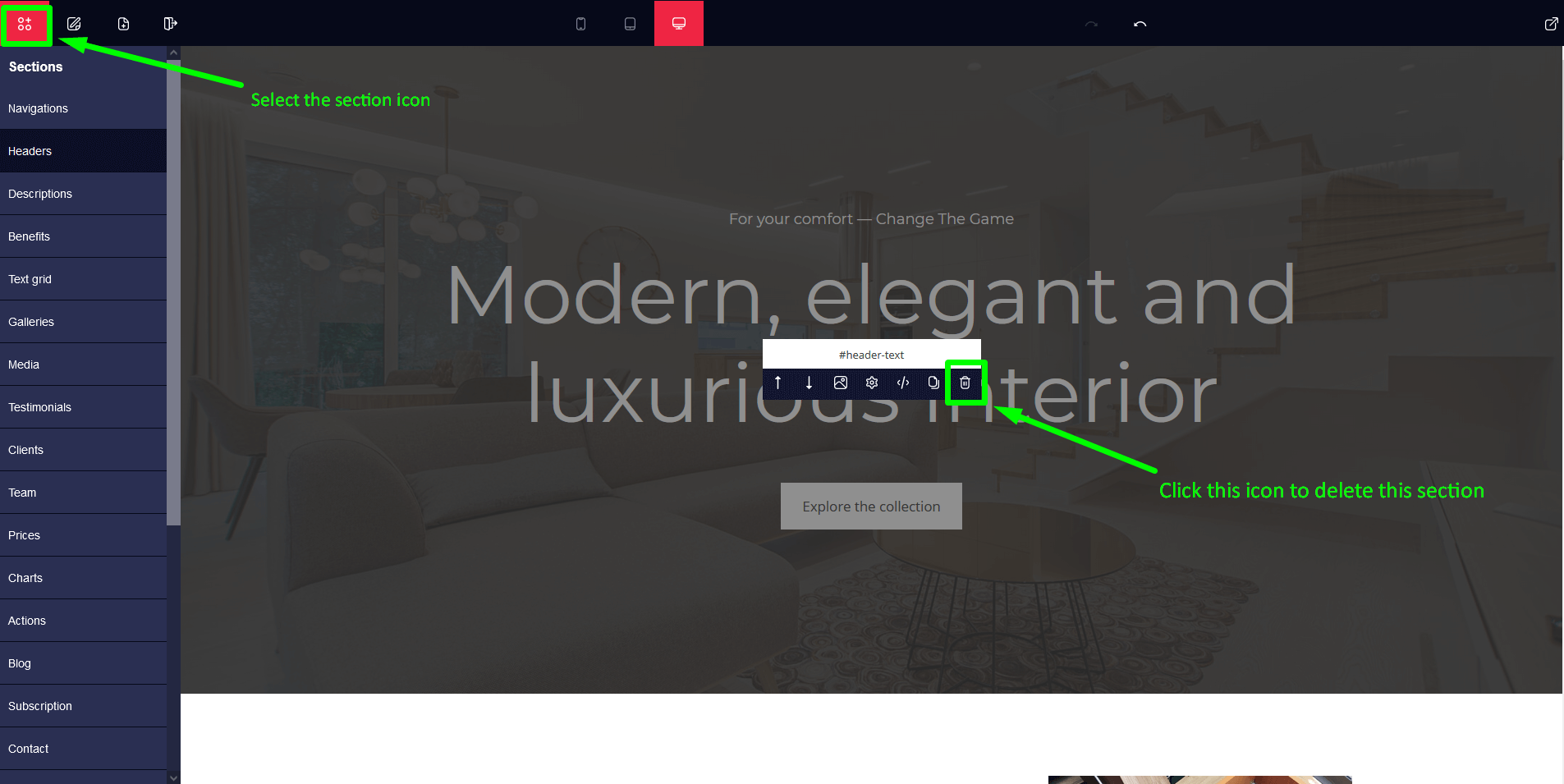
To delete a section, click section icon and then click delete icon on the panel. Steps age given in below picture.
Edit Section
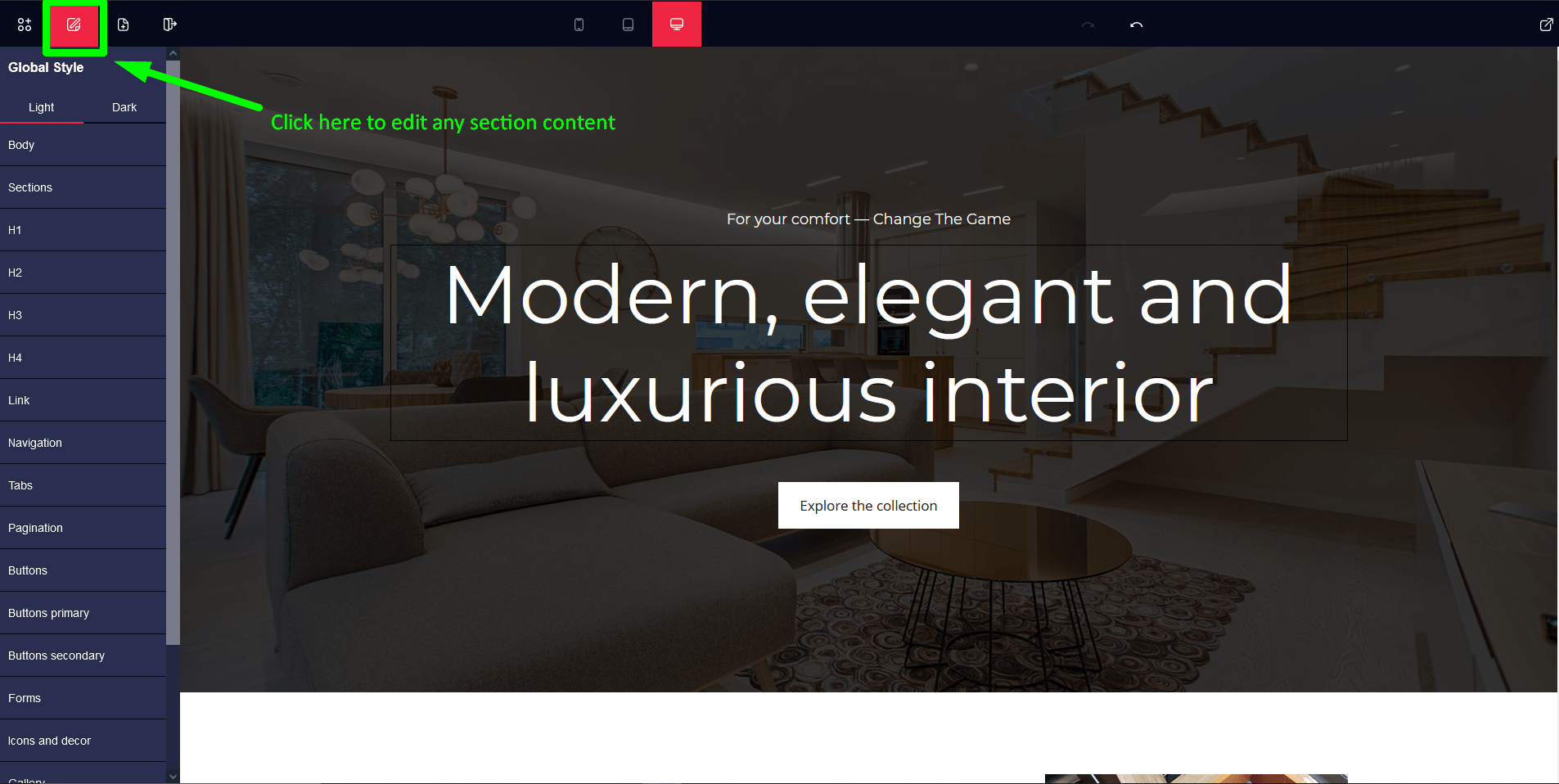
After added a section, if we need to edit the sections content click on edit section icon.
***For any kind of edit or styling of content, always click on the edit section icon before edit or styling***
Edit or Change Sections Text Content
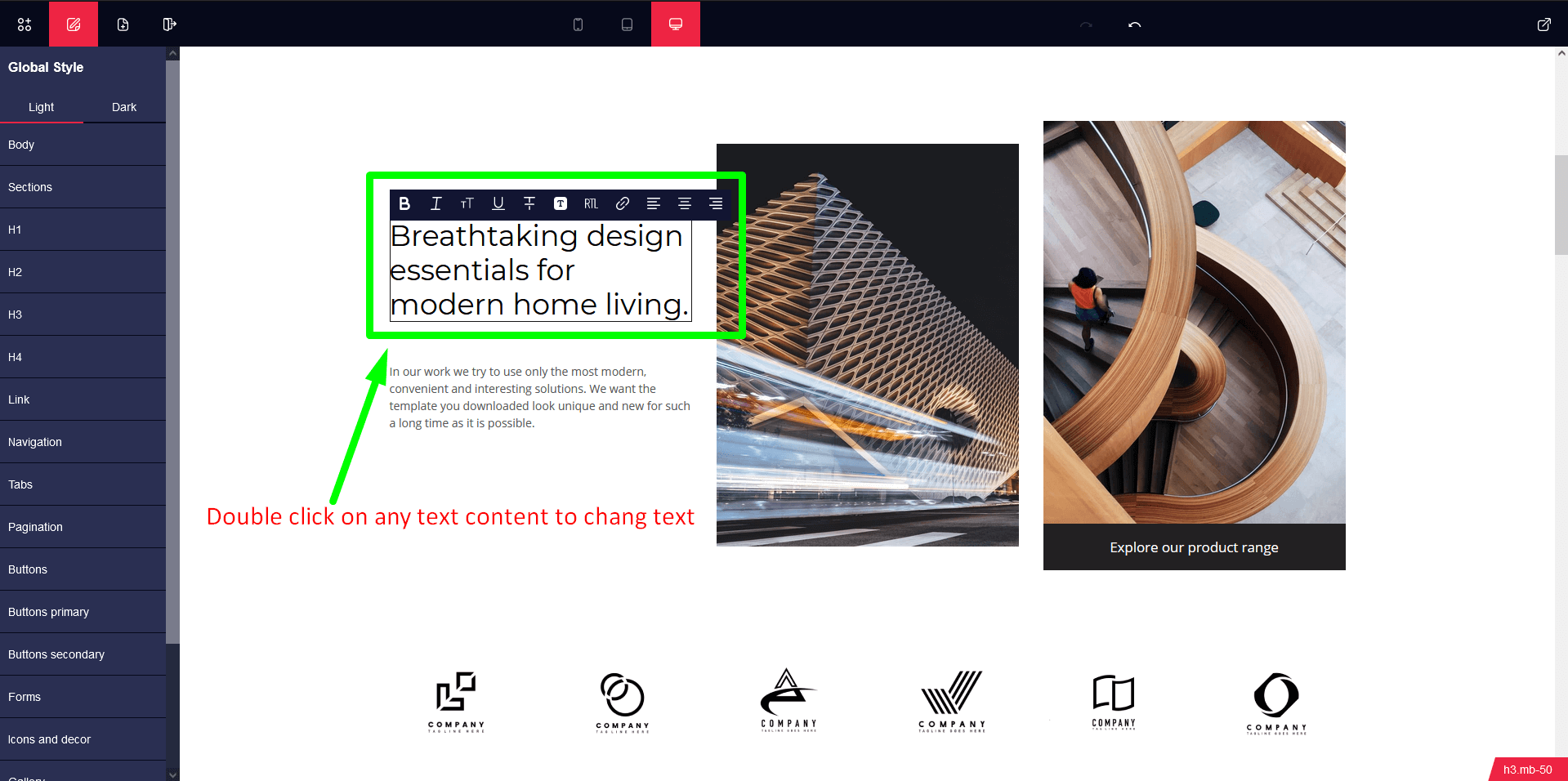
Change or update content text of the section, Double click on the content.
Edit Sections Content Style
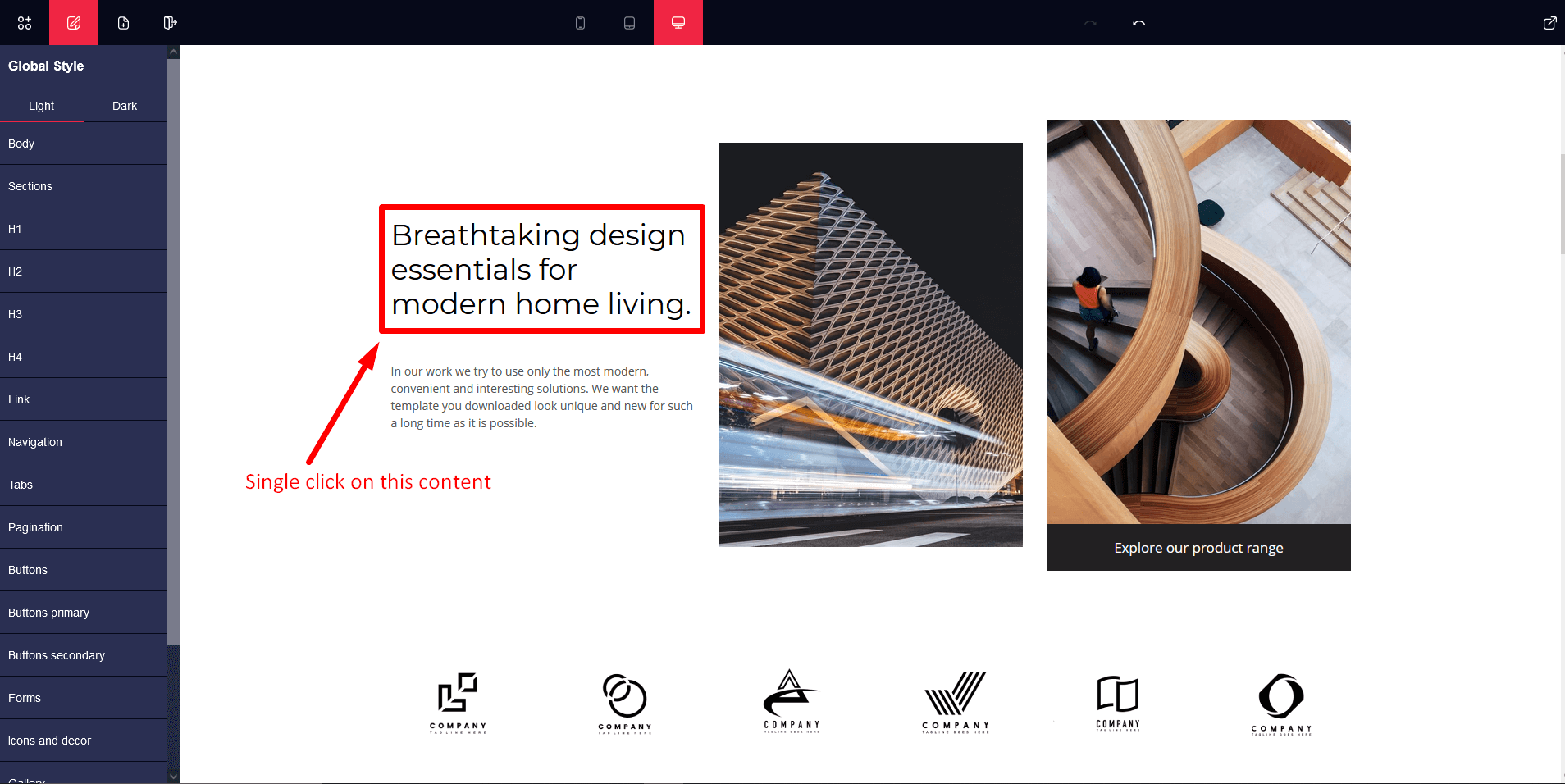
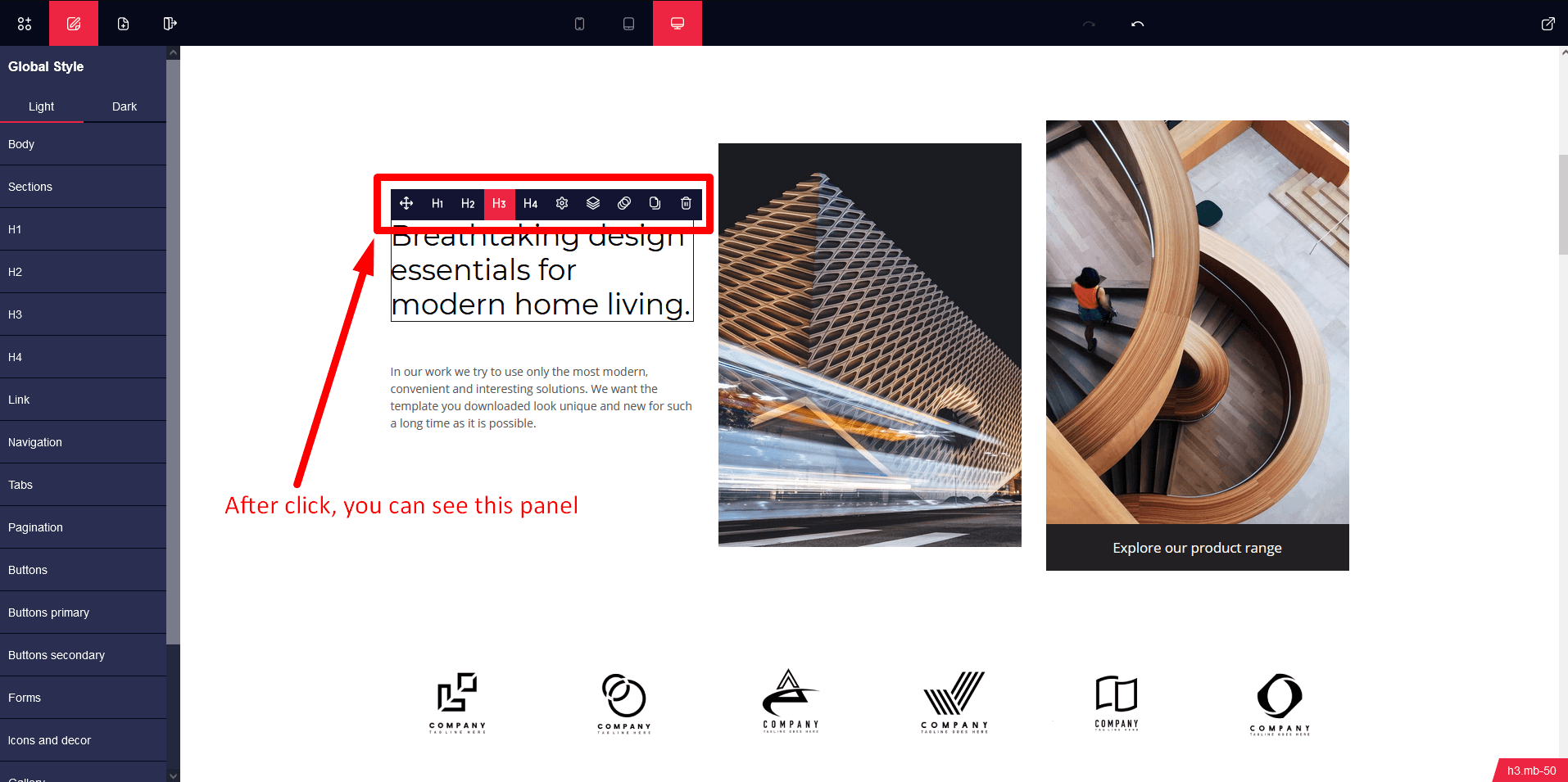
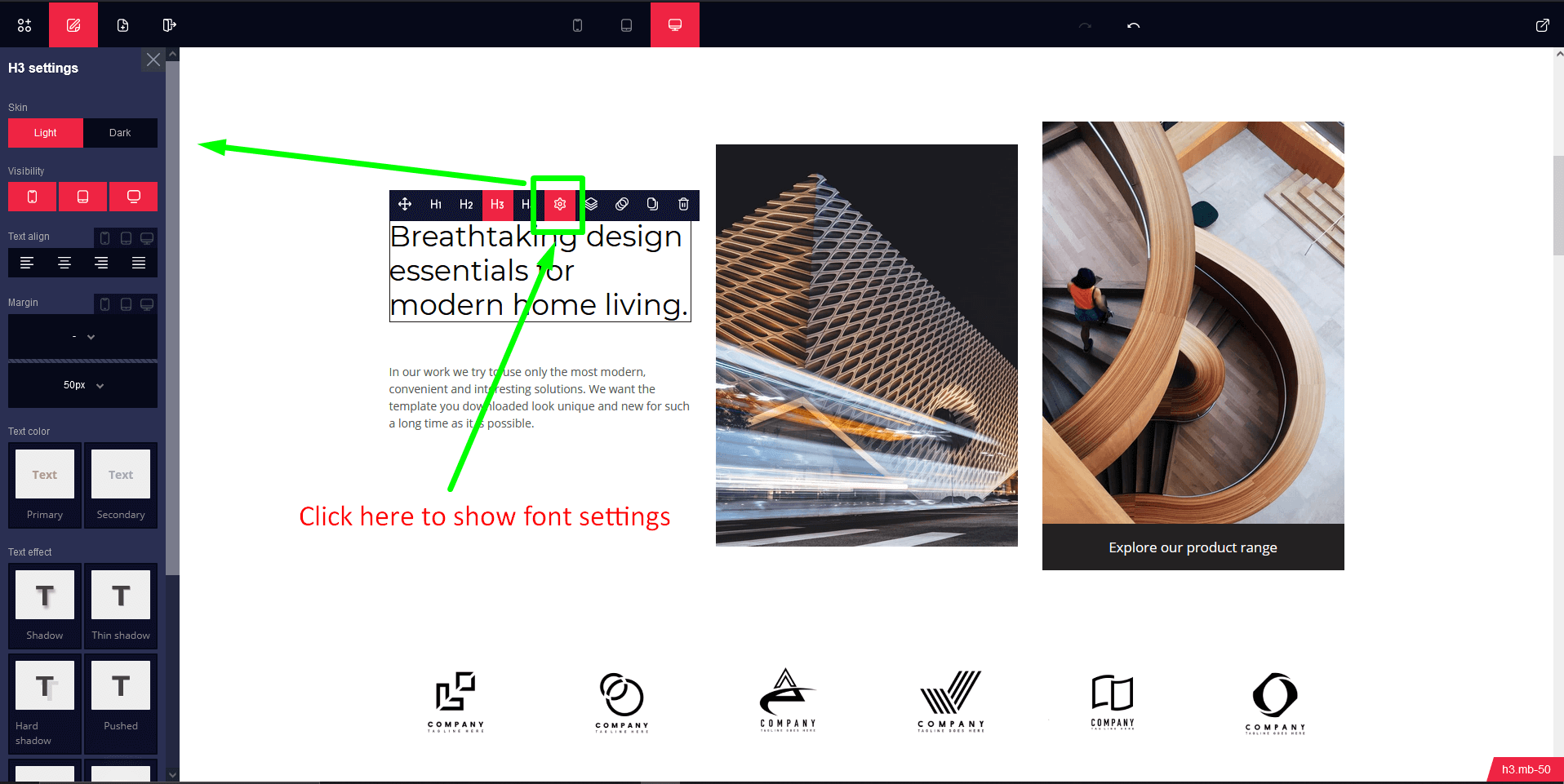
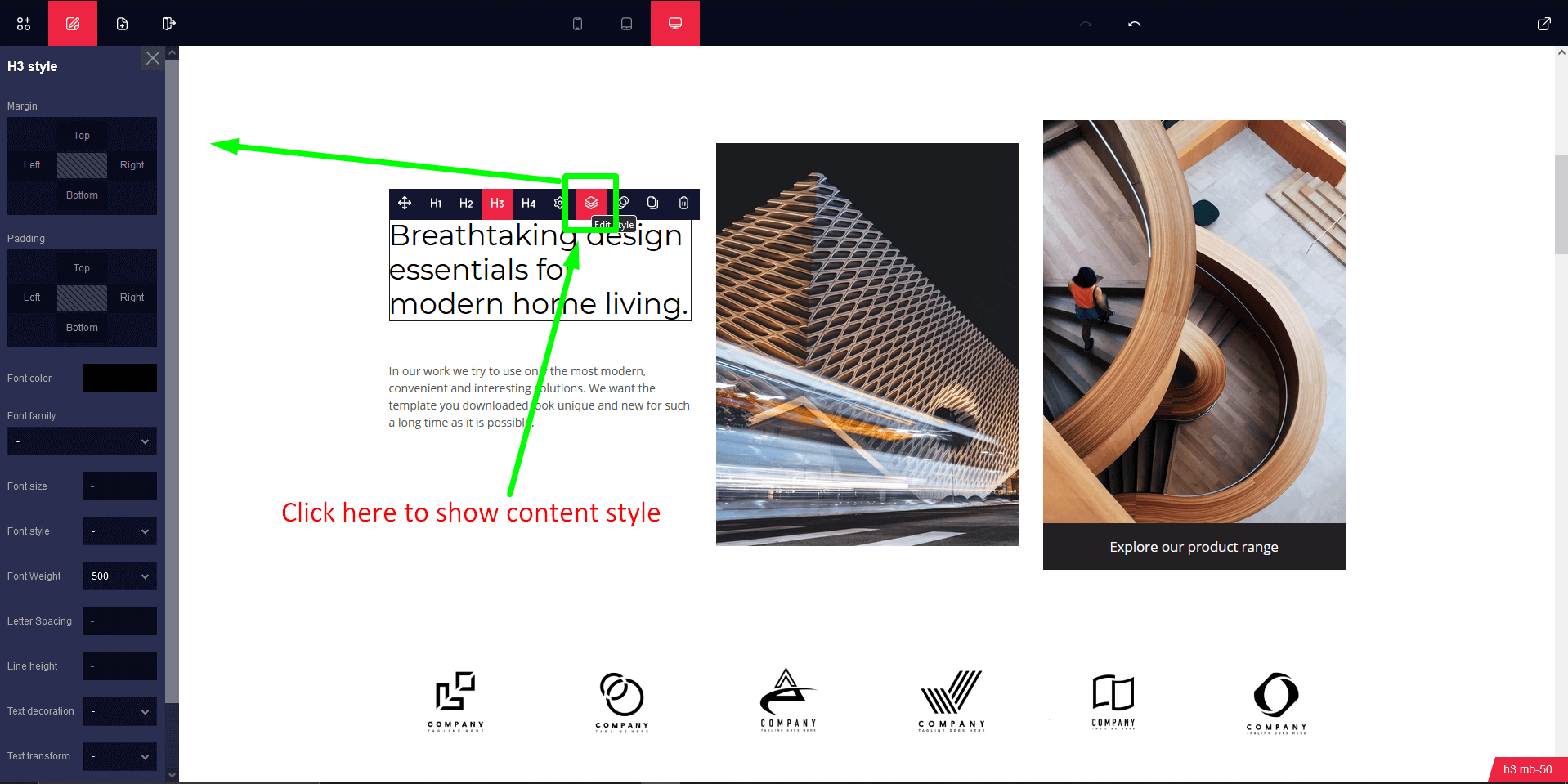
Change or update content of the section, Single click on the content and you can see a edit panel.
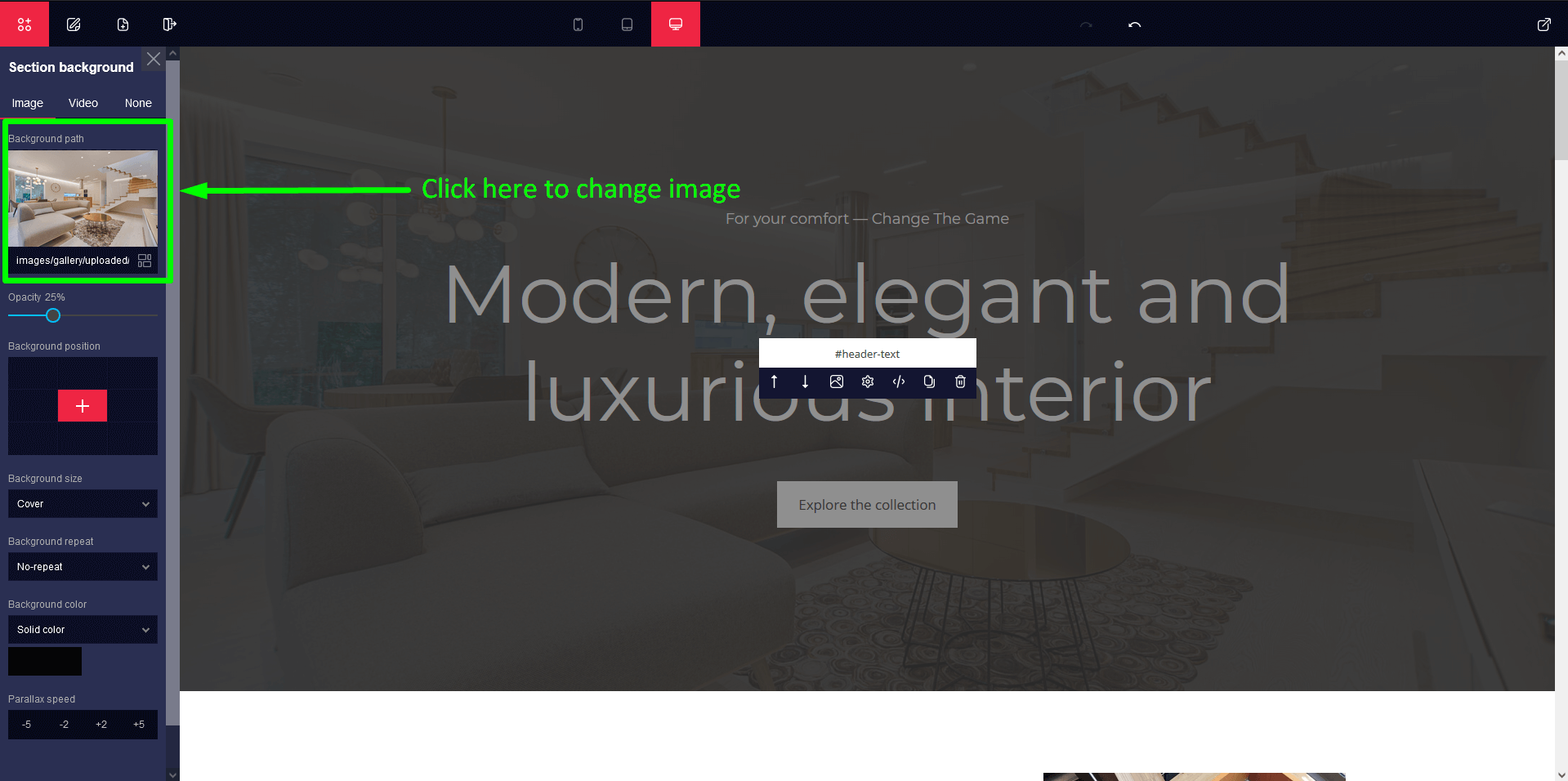
Change Background Image
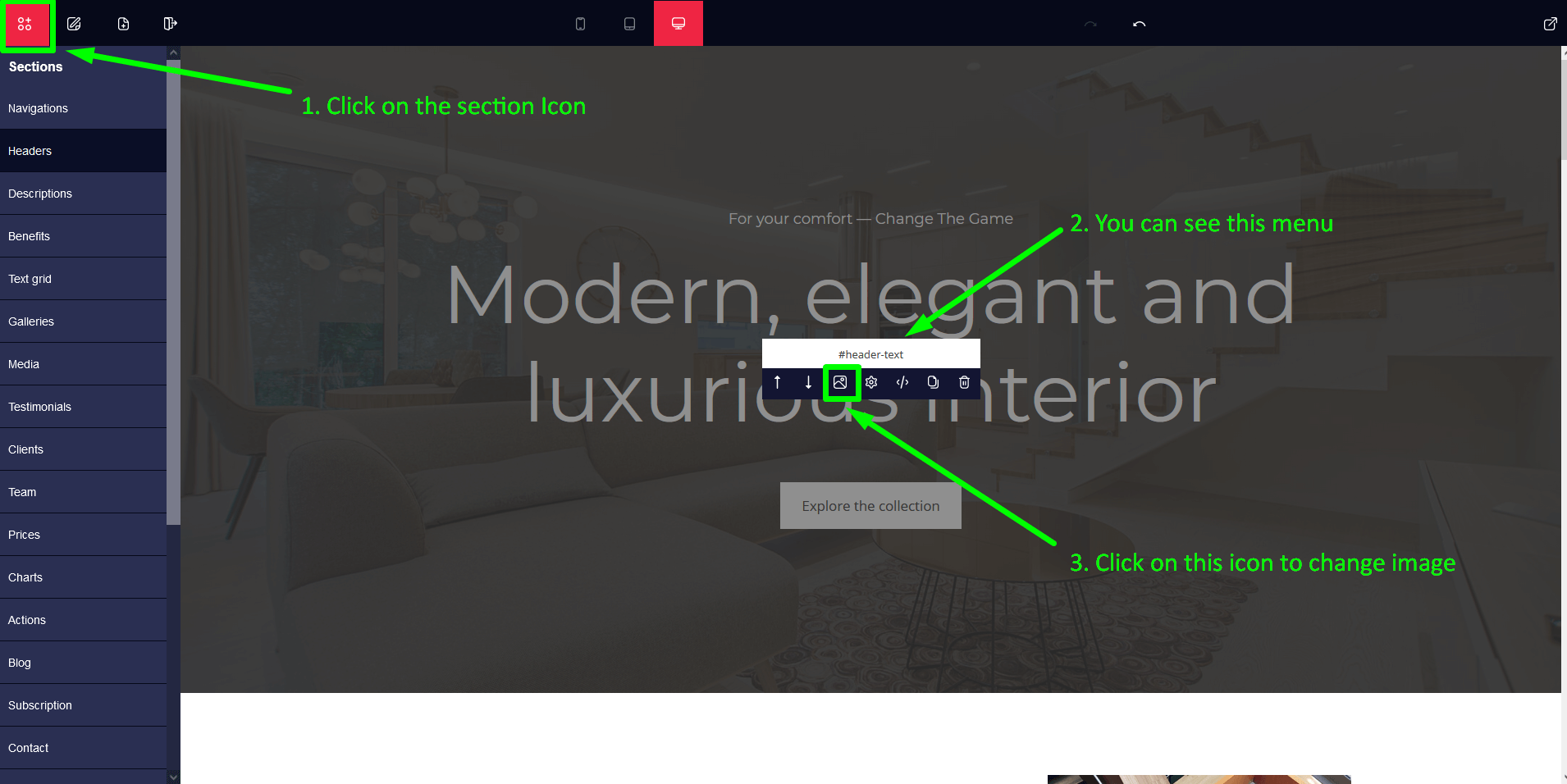
For changing any sections background image, at first we need to click on section icon from the left sidebar. Then we will see a panel on center of the window, Then click on the image icon and we will see a sidebar from left side, Here we can change the image.
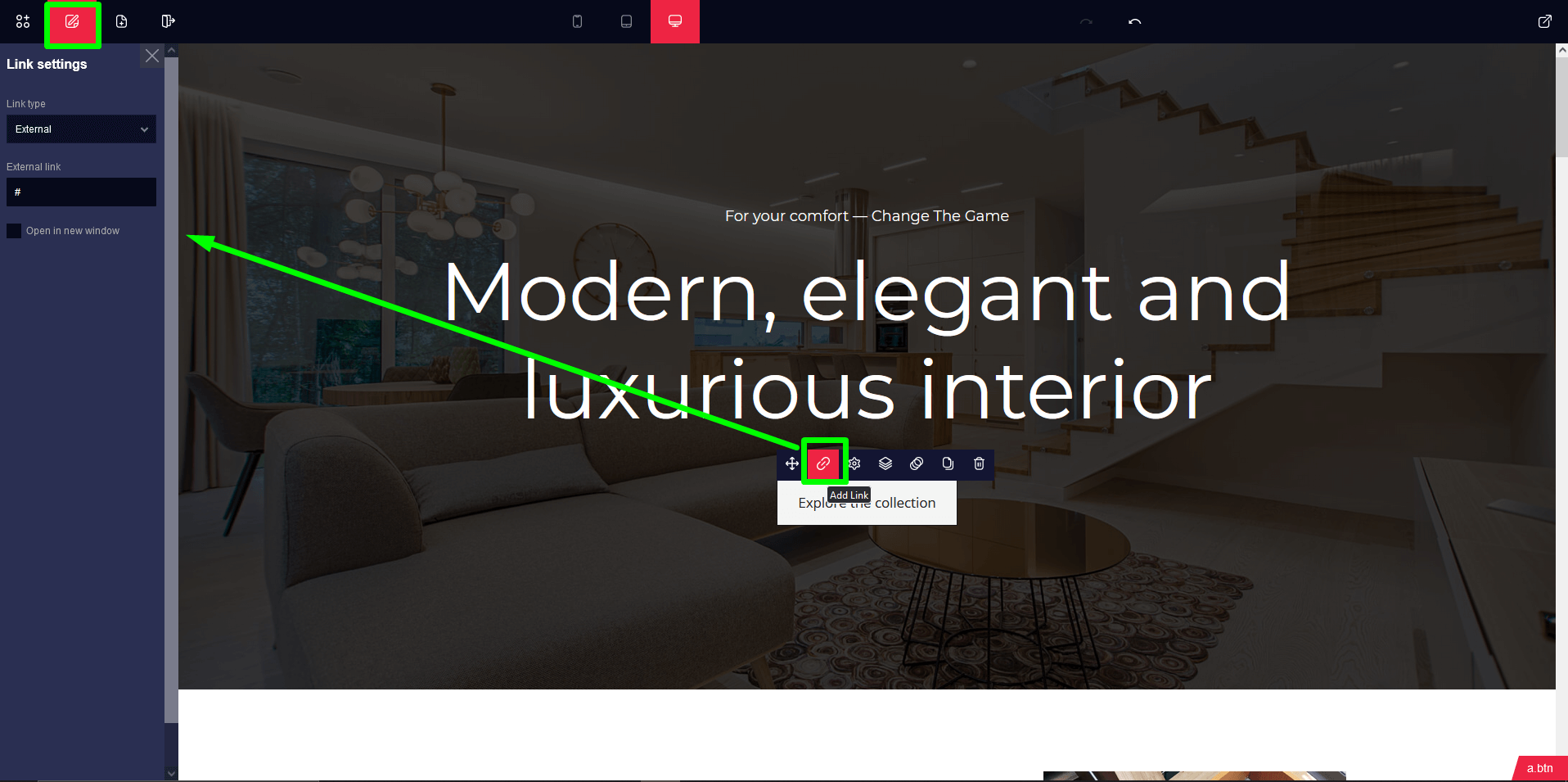
Add Clickable Link
To make any content clickable with link, Single/Double click on the content and then we can show a panel, click on the link icon of the panel then a sidebar will be open at left side of the window. Now we can write or paste link in the external link box
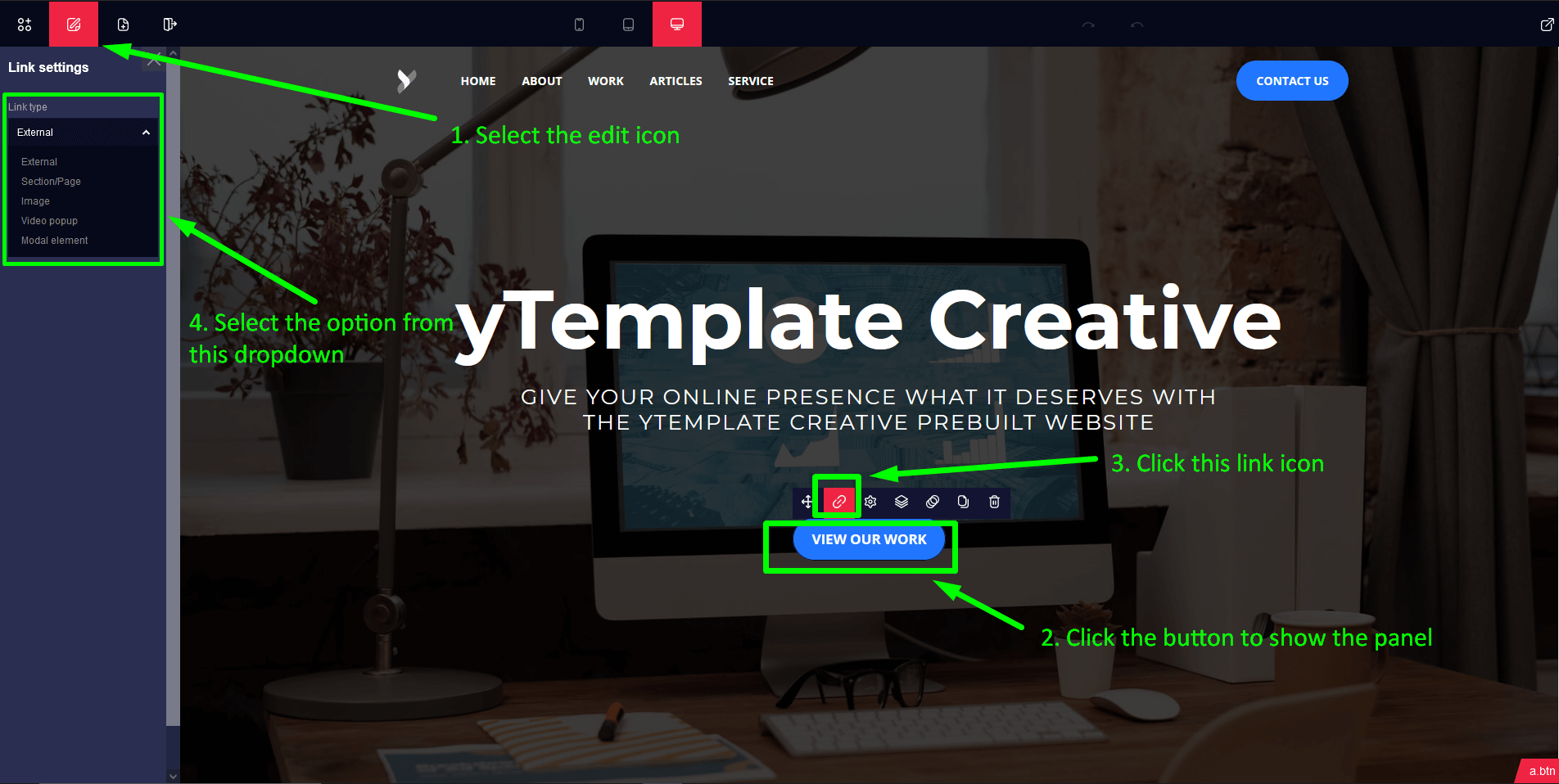
Popup Video/Image
To make any content popup with Video or Image, Single/Double click on the content and then we can show a panel, click on the link icon of the panel then a sidebar will be open at left side of the window. Clik on link type dropdown and select image for "Image Popup" or select video popup for "Popup Video"
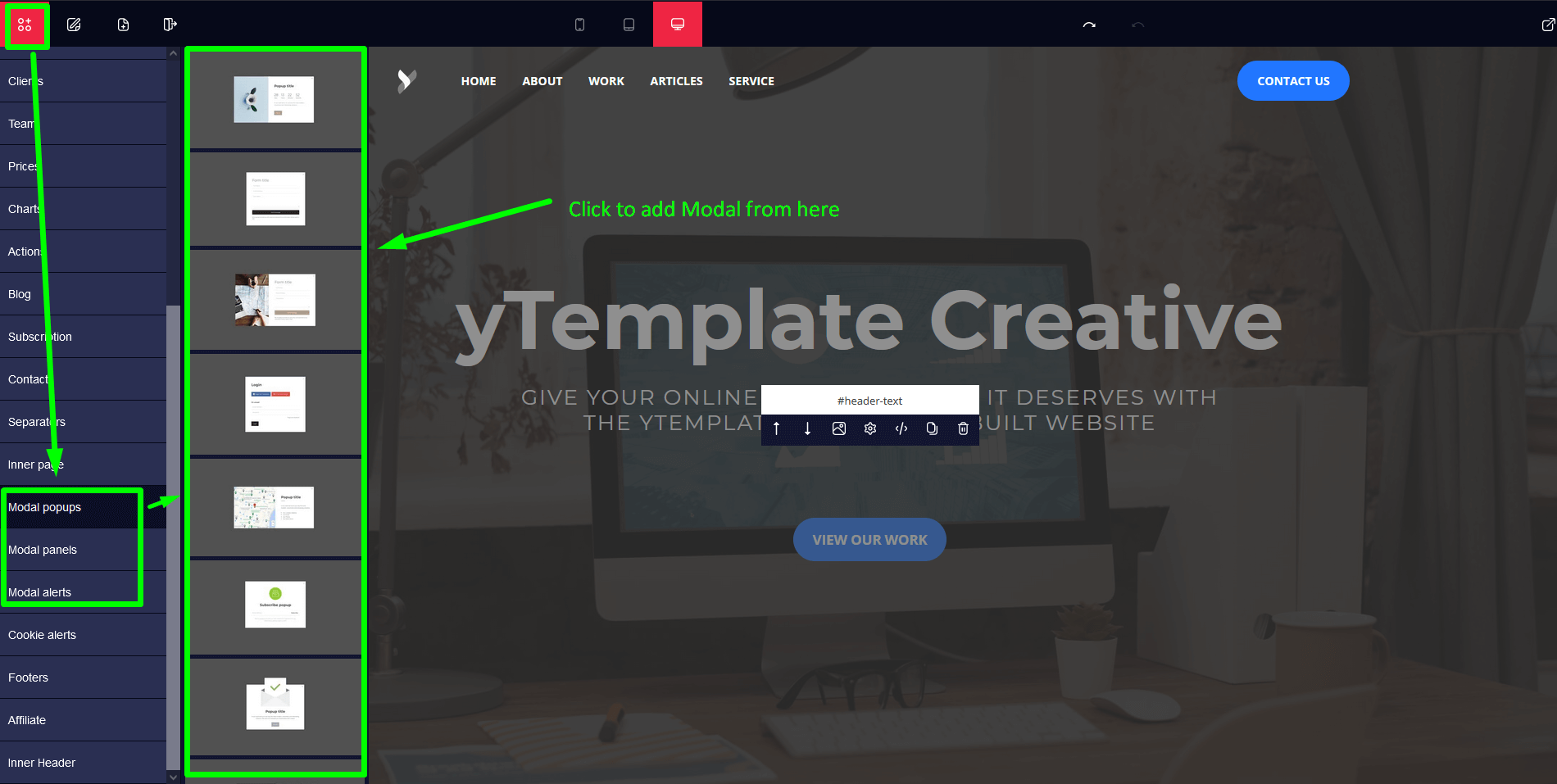
Modal/Popup Form/Alert
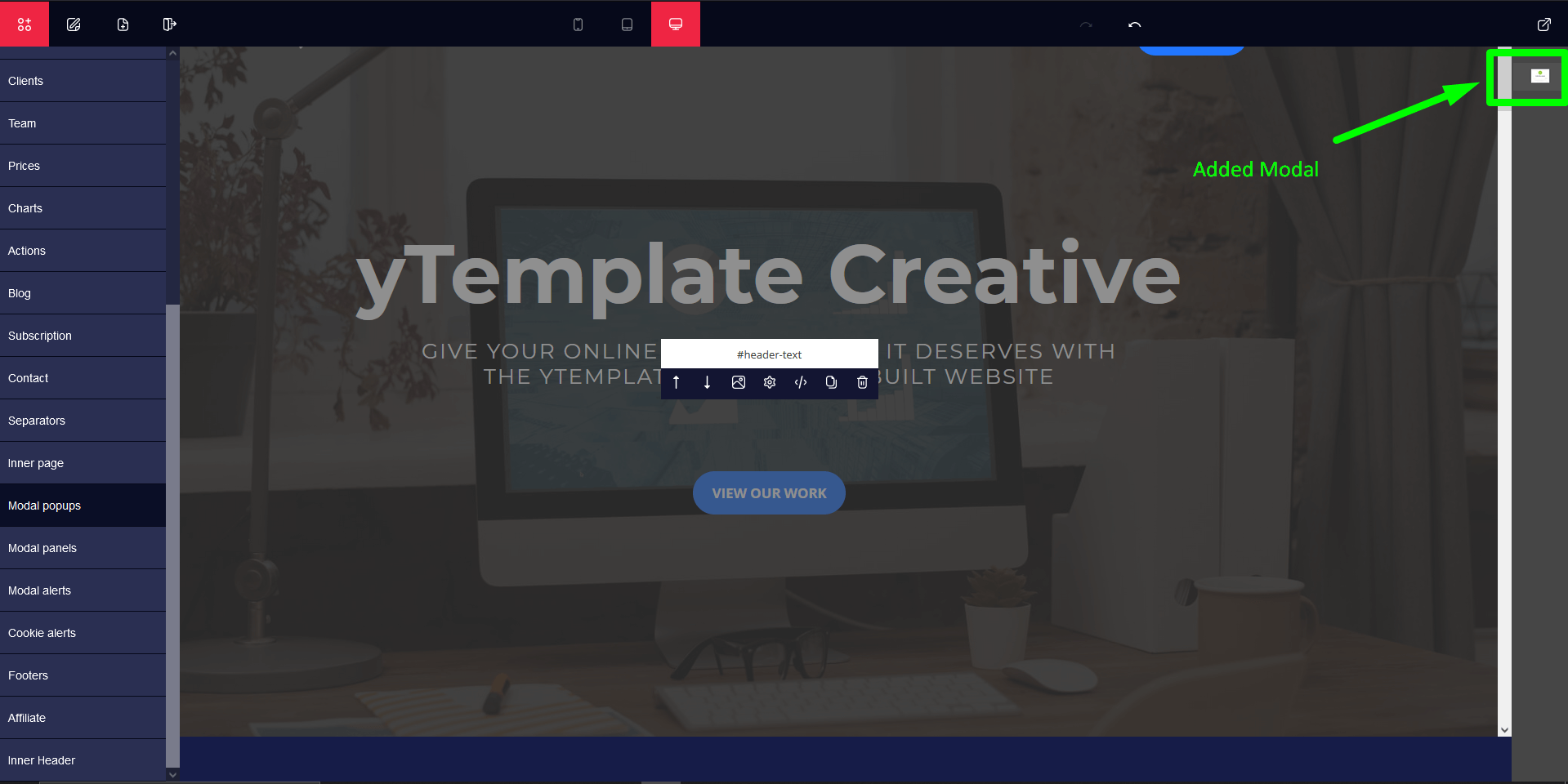
At first we need to add modal form, sidebar, alert etc. from sections > modal popup, modal panel, modal alert > choose a section, now which will show at top right side of the window
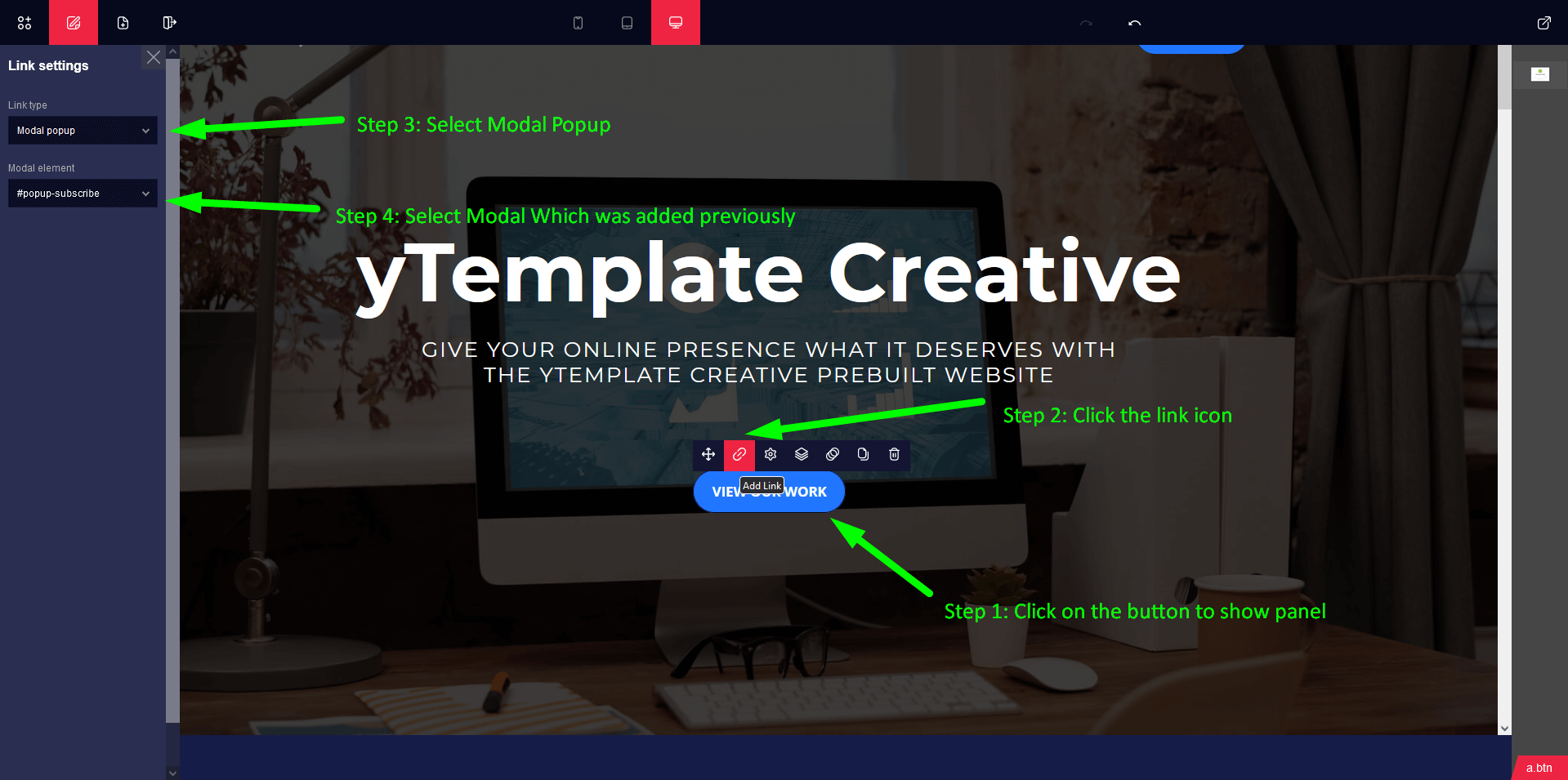
Now Single/Double click on the content and then we can show a panel, click on the link icon of the panel then a sidebar will be open at left side of the window. Clik on link type dropdown and select modal element then click on modal element dropdown and select modal which we added before.
Add Animation
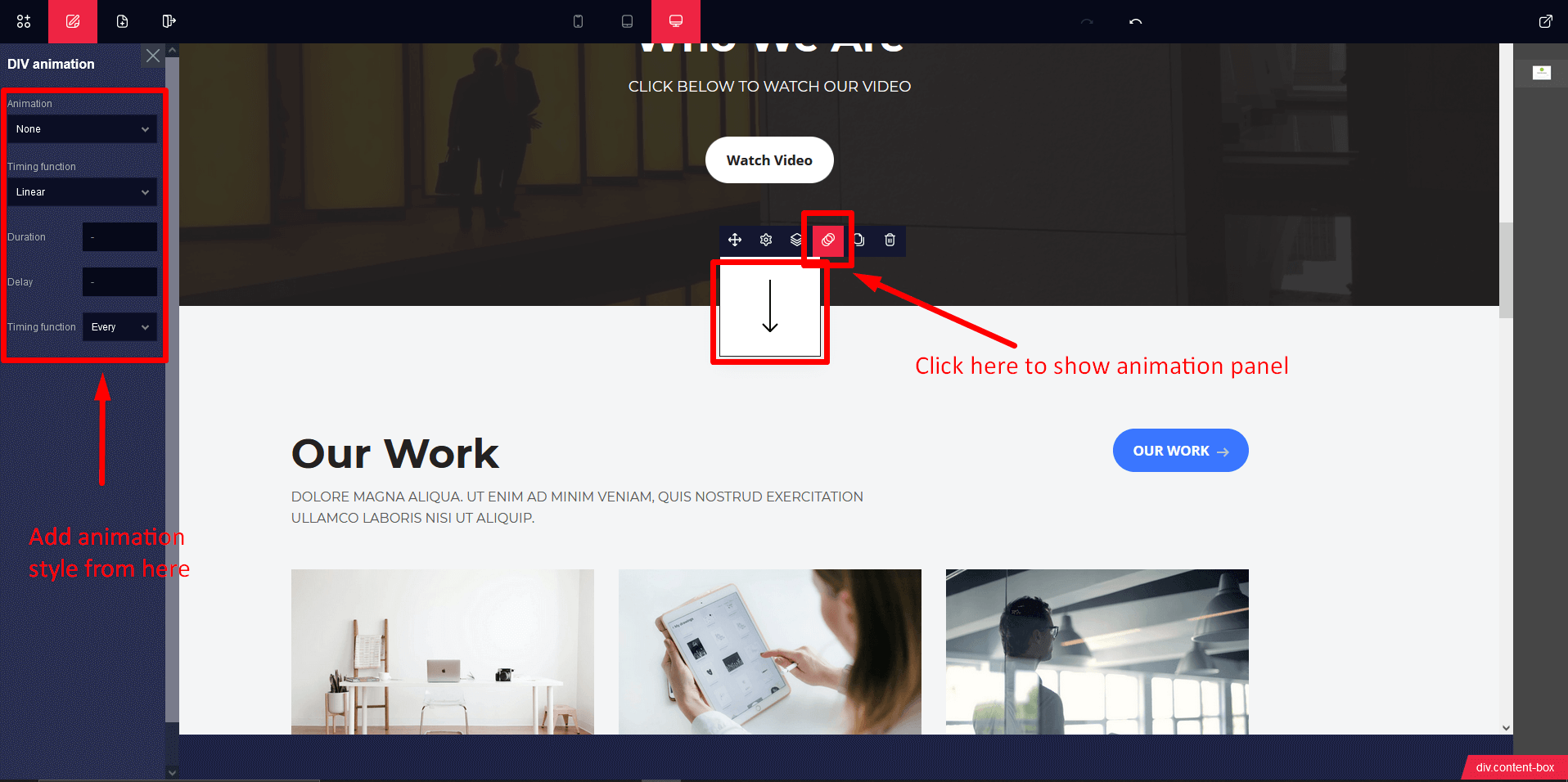
Click on the section of project page and then show a panel then click animation icon after that a side menu will be open on left of the window, here we can select and add animation style.
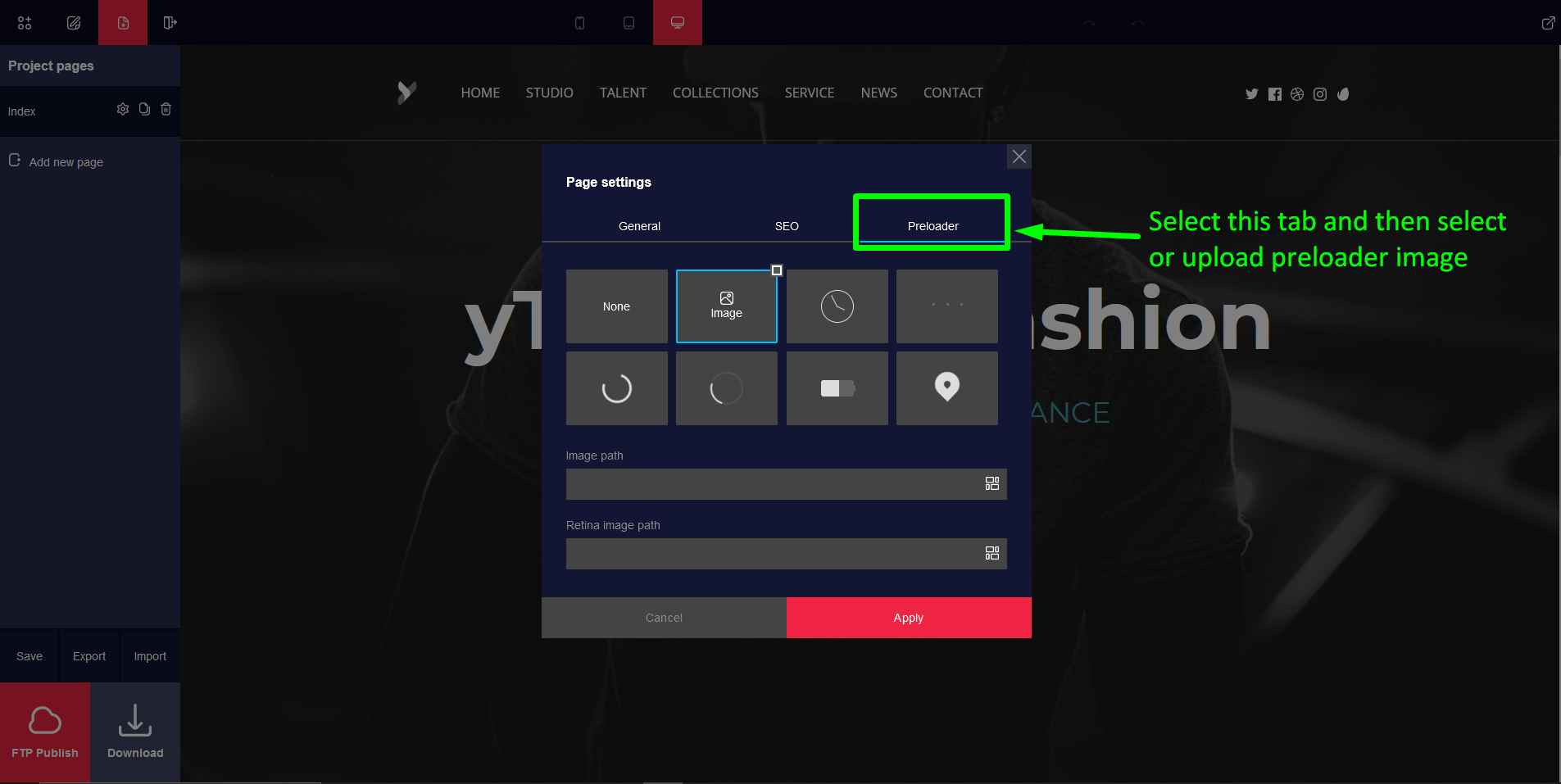
Add Preloader
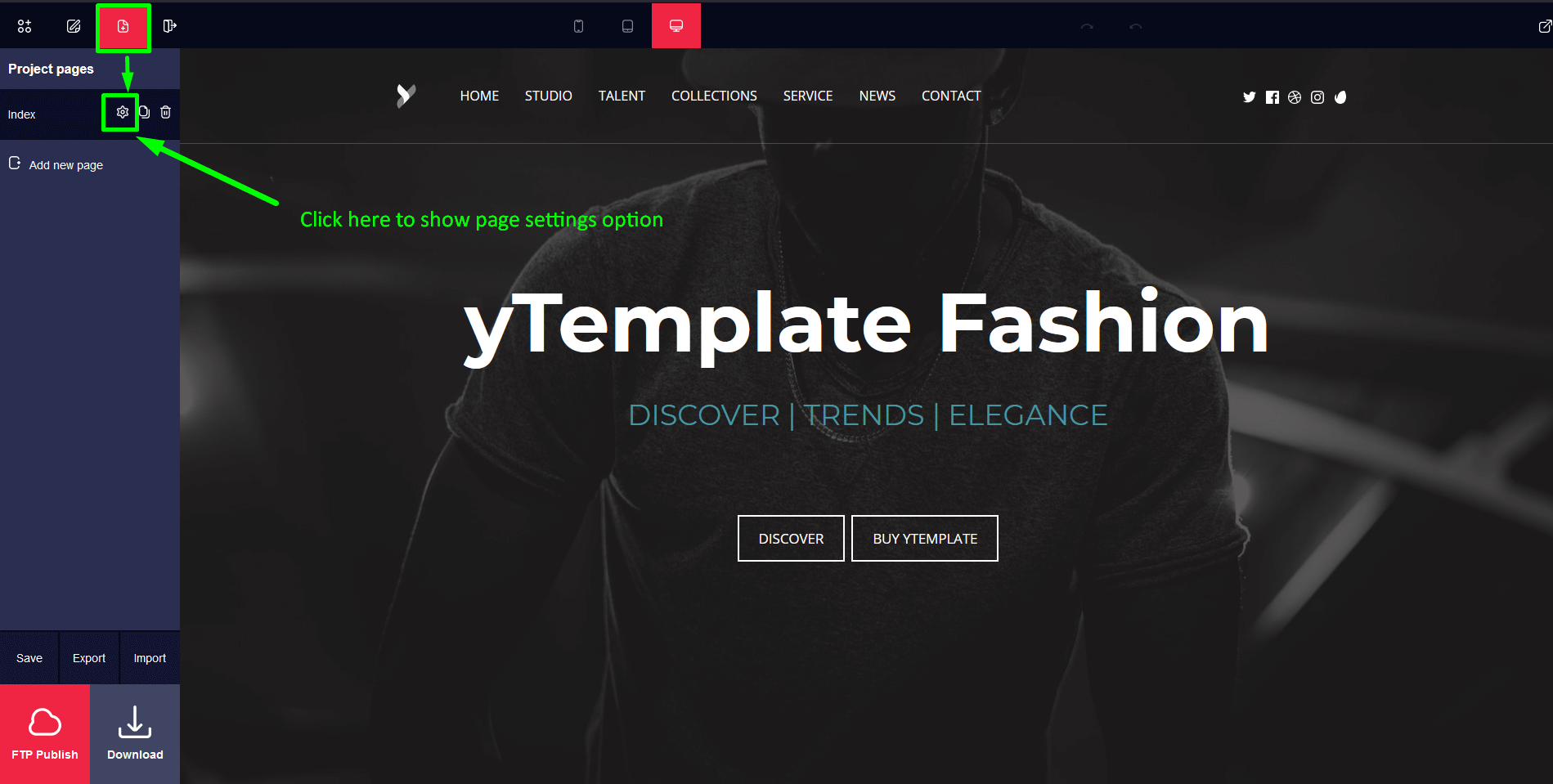
Click on the Porject Page icon and then its show the page list and then click setting icon of the page then a page setting modal will be show in the middle of the window, here we click preloader tab and then we can select any preloader or upload any image.
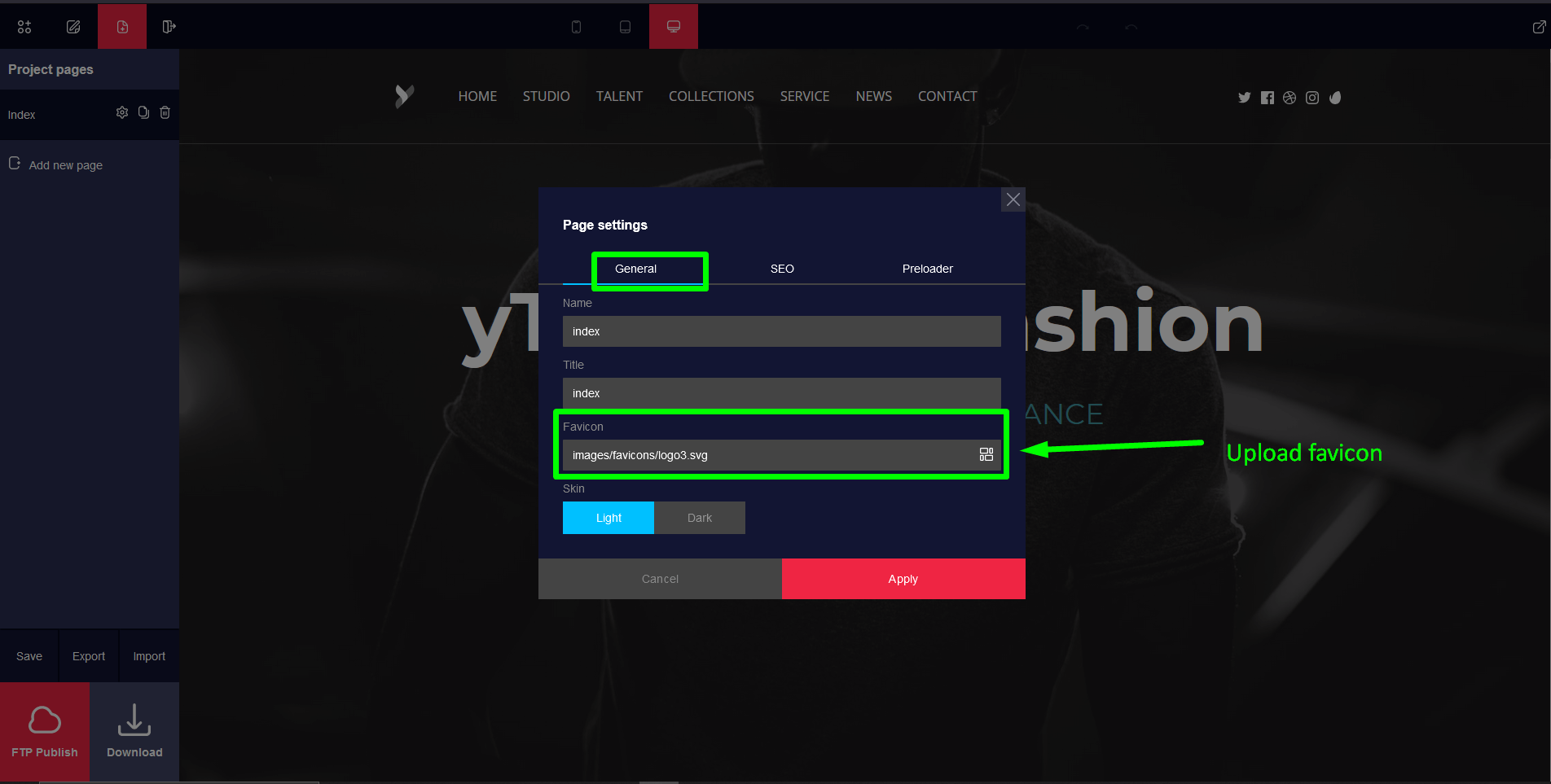
Add Favicon
Click on the Porject Page icon and then its show the page list and then click setting icon of the page then a page setting modal will be show in the middle of the window, here we click general tab and then we can select Favicon image.
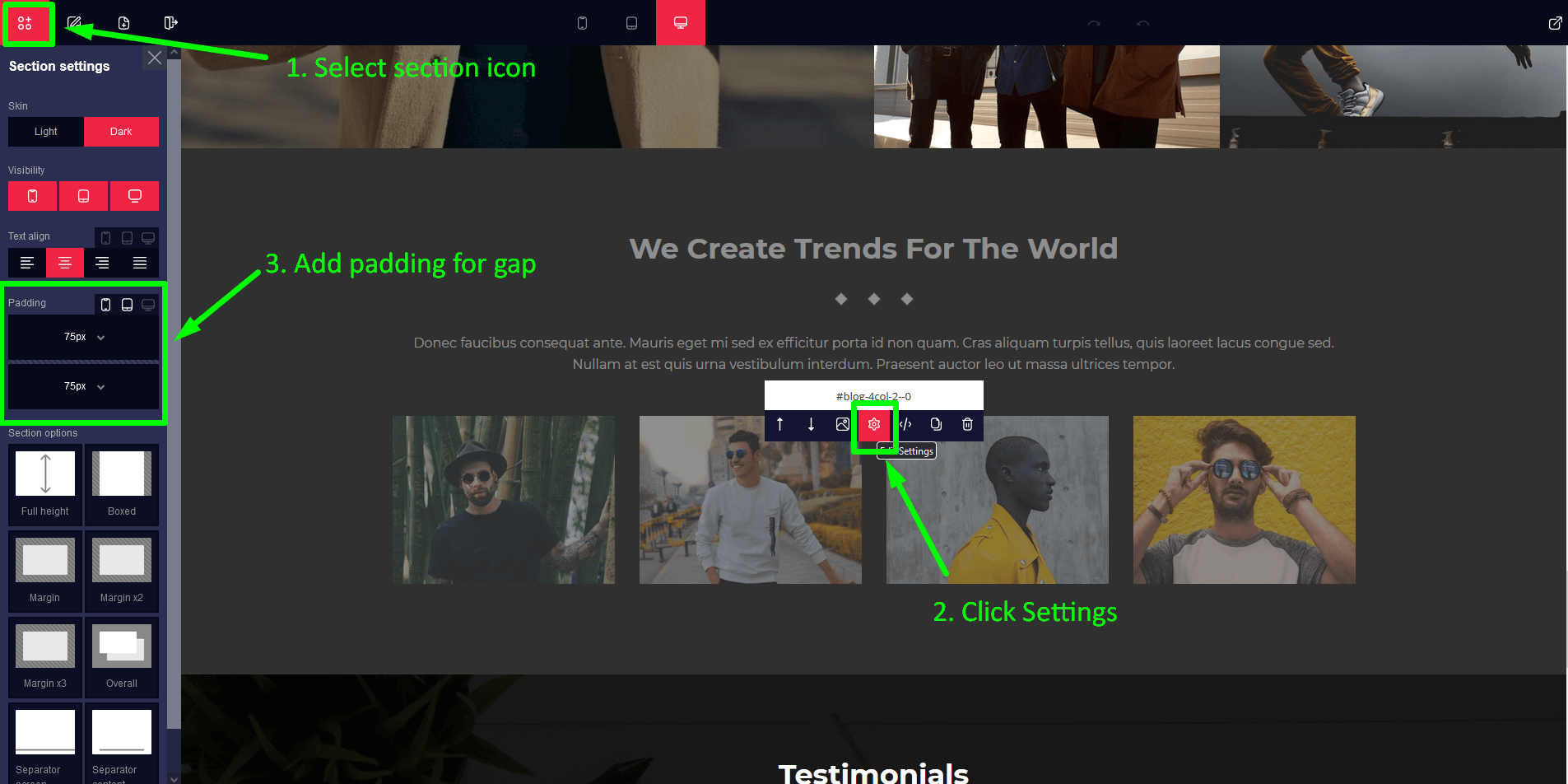
Section Gap
Click on the Section icon and then its show a panel middle of the window, here we click settings then a sidebar open on the left side and then change value of padding.
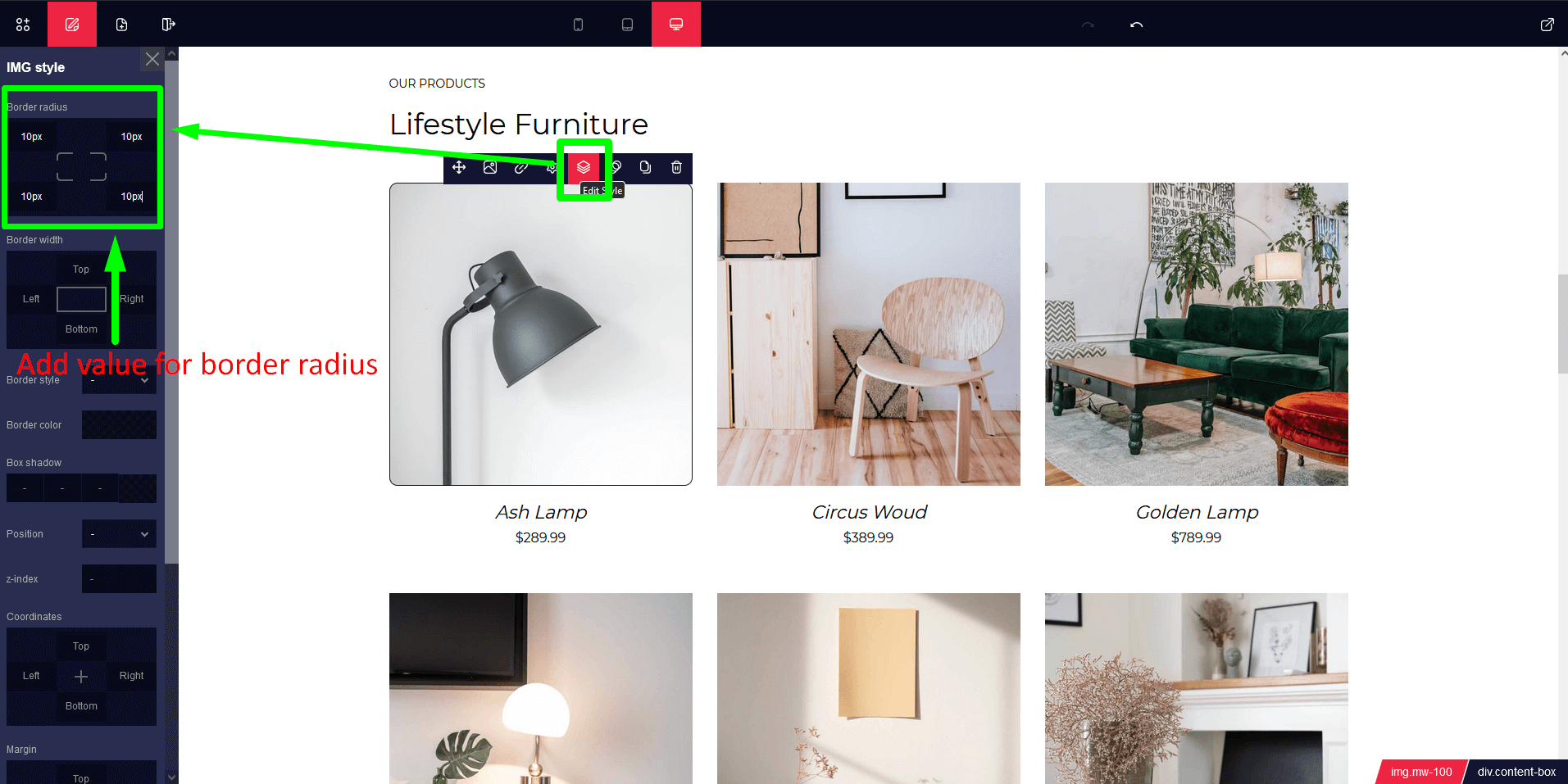
Border Radius
Click on the content then its show a panel, here we click edit style icon then a sidebar open on the left side and then change value of border radius.
Responsive Style Change
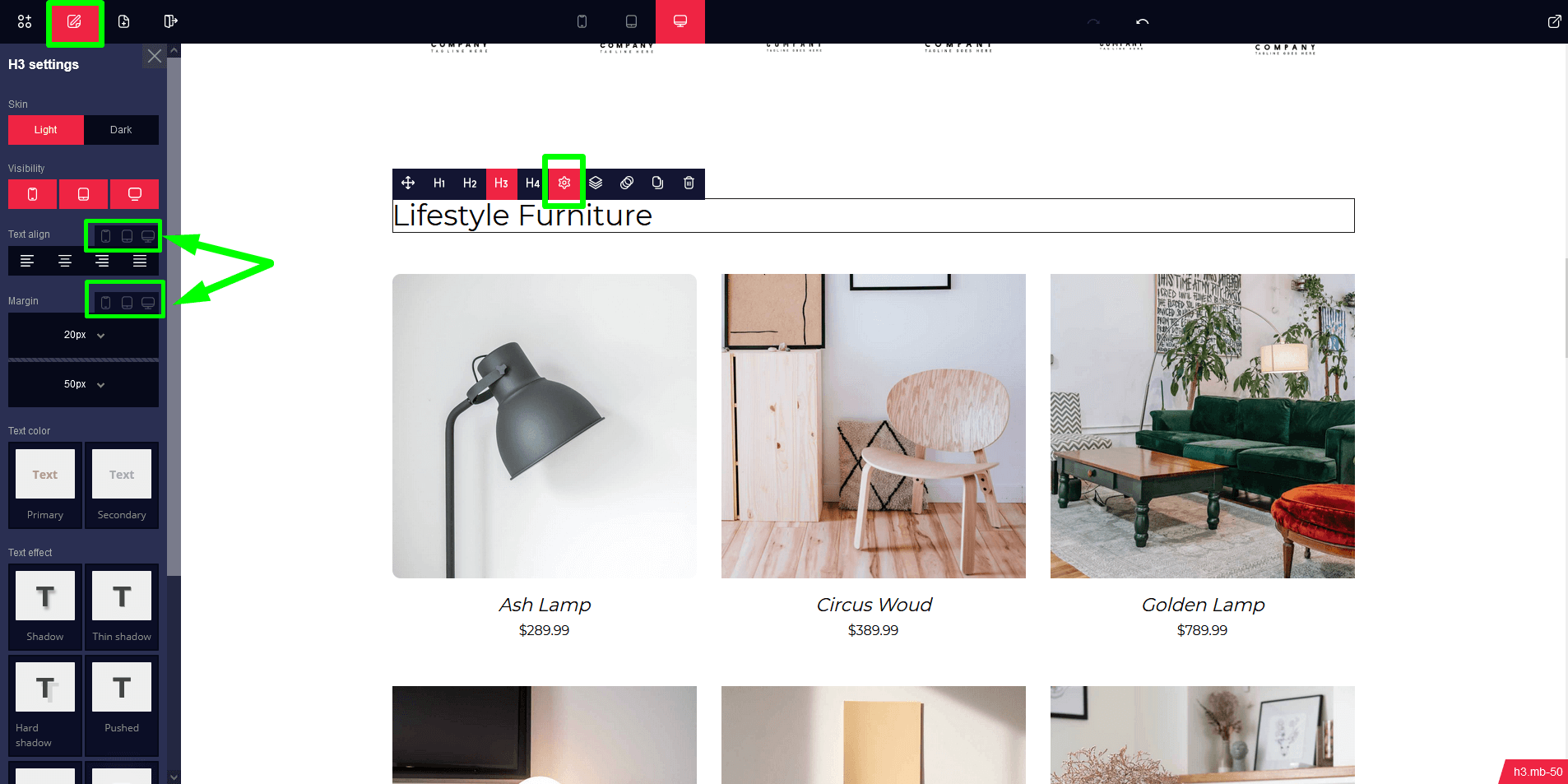
Click on the Section icon then every sections show a panel, here we click settings icon then a sidebar open on the left side, Select device and change Text align, Padding individually.
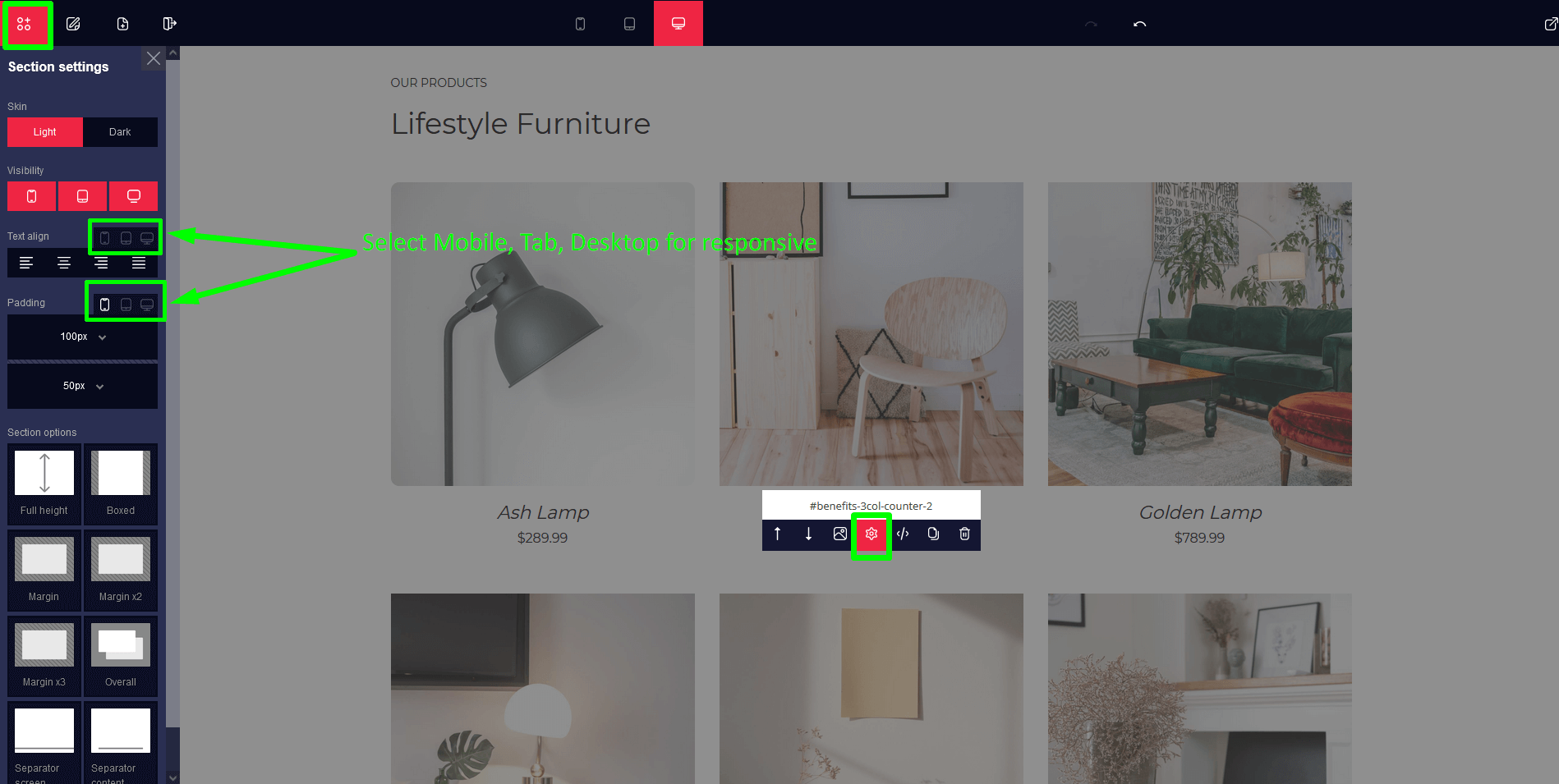
***We can change any content of a section, same as above just click Edit Section instead of Sections icon. Follow below Image.